Before you edit
Your changes go live on your website the moment you click Save. No one at Unnati GeoRank approves them first.
We believe website owners should have complete control over everything visitors see, including the photos, and the freedom to update it whenever they need to. That control comes with some responsibility:
- Keep your password private. Do not share it with untrained staff, or with children, who could post a joke or an unsuitable message by mistake or on purpose.
- Publish only appropriate content. Read your text through before you save, and keep the wording professional and respectful.
- Check your work. After you save, click View page to see exactly what your visitors will see.
Quick answers
Find the job you want to do, then go to the place in the right column. Each one is explained later in this guide.
| I want to | Go to |
|---|---|
| Change text on a page | Files, open the page, type, click Save |
| Change a colour, a photo or the cards inside a section | Open the page, point at the section, click the pencil |
| Upload a new photo | Media, Upload Files |
| Crop a photo | Media, Crop under the photo |
| Show an offer at the top of every page | Design, Appearance, Sticky Announcement Banner |
| Reorder or rename menu links | Design, Menu |
| Hide a page from the menu | Open the page, Controller tab, untick the navigation box, Save |
| Change address, phone or email | Site Settings, Business Info |
| Change the WhatsApp button or its number | Site Settings, Sticky WhatsApp Button |
| Change my password | My Account |
Logging in
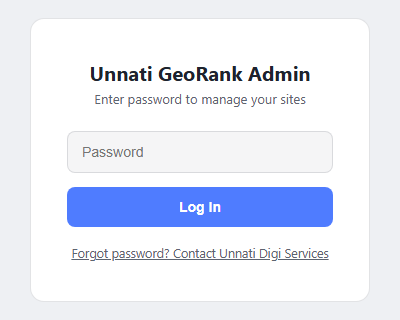
- Type your password here.
- Click Log In.
- Forgot password? opens the Unnati Digi Services contact page.
- Open the GeoRank address your developer gave you. It usually ends in /georank/, for example yourwebsite.com/georank/.
- Type your password and click Log In.
- When you finish, click Log out in the top bar.
You stay logged in while the dashboard is open in your browser. If it has been left alone for many hours, GeoRank asks for your password again in a small box on top of the page. Your work stays exactly as it was, so type the password, log in and carry on.
Click Forgot password? on the login page. It opens the Unnati Digi Services contact page, and we will set a new one for you.
Finding your way around
After you log in you land on the Files tab. The top bar stays on screen everywhere, so you can switch between jobs at any time.
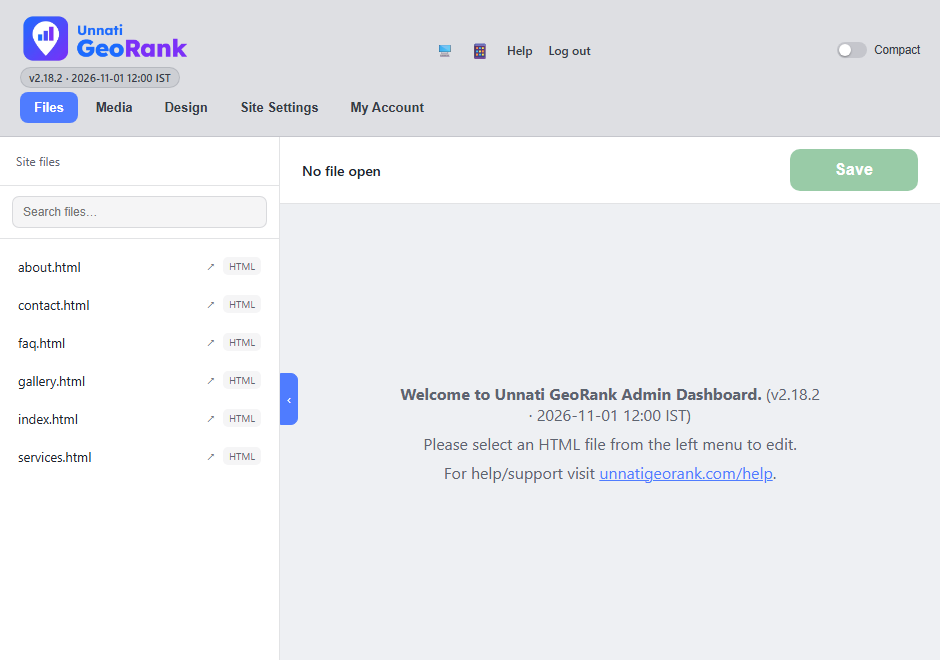
- Main tabs: Files, Media, Design, Site Settings and My Account. The tab you are on is blue.
- Your GeoRank version. Mention it if you ever ask us for help.
- View your site (the monitor icon) opens your live website in a new tab.
- Mobile Preview (the phone icon) shows how a page looks on a phone.
- Help opens this guide.
- Log out. Always use it on a shared computer.
- Compact makes the top bar slimmer, which gives the editor more room.
- Search files finds a page by name.
- Your pages. Click a page to open it.
On a smaller screen the link names in the top right shrink to icons, and on a narrow window the tabs move to a second row, so every tab is always visible. If your website has a blog, a Blog link also appears next to Mobile Preview. It opens your blog's own writing page.
Editing a page
- Open Files and click the page you want. Use Search files if the list is long.
- The list stays open beside the page. Click the small arrow on its edge to fold it away for more room, and again to bring it back.
- Click in the text and type. Select words to make them bold, turn them into a link, or change a heading.
- Click Save in the top right. Then click View page to check it on your real website.
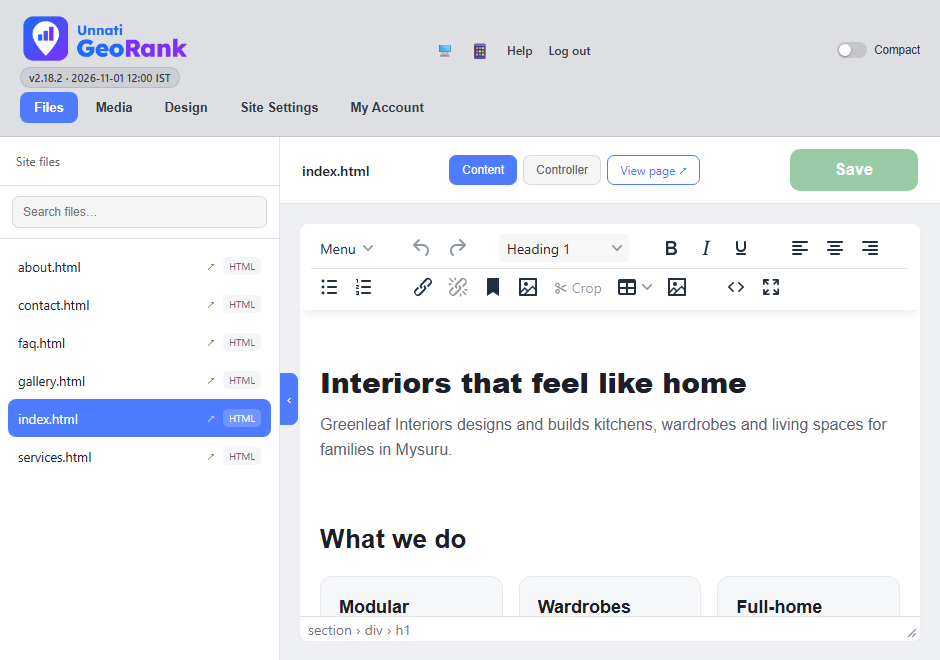
- The page you opened is highlighted in the list.
- This small arrow hides or shows the page list.
- Your page opens here, ready to edit.
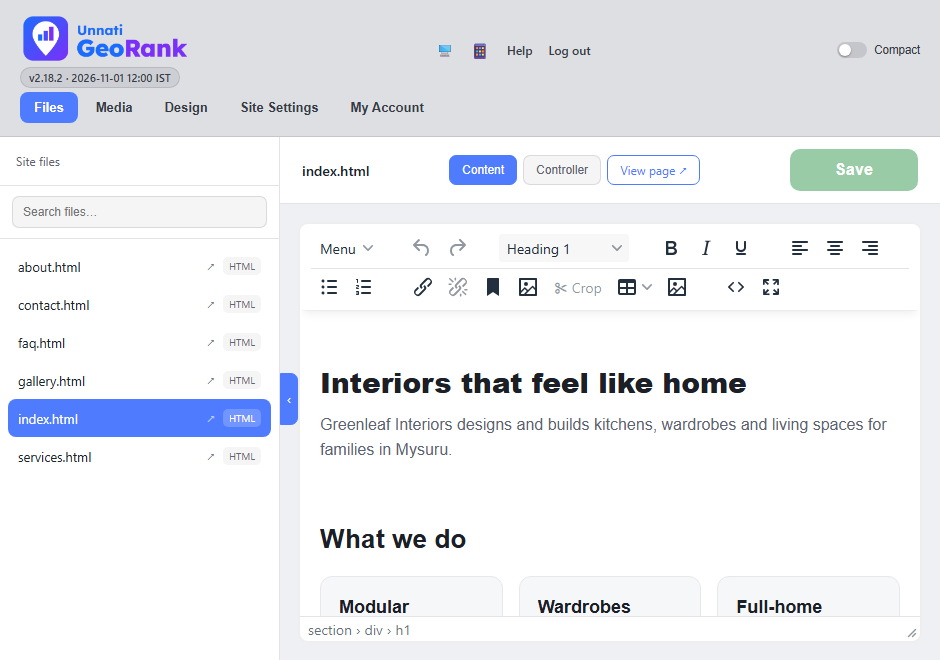
- Content is where you edit the page. Controller holds this page's settings.
- View page opens the live page in a new tab. It shows the last saved version.
- Save. Nothing reaches your website until you click this. The button is pale while there is nothing new to save, and it pulses when you have unsaved changes.
- The Menu button holds the less common commands.
- The toolbar: headings, bold, italic, lists, links, pictures and tables.
- The page. Click any text and type, just like in a document.
Nothing is published until you click Save. If you leave the page first, your changes are lost. GeoRank keeps a backup copy when you save, so a mistake can be undone by asking us.
The toolbar
The icons above the page text work like a word processor. The ones you will use most are the headings list (to turn a line into a heading), B, I and U for bold, italic and underline, the alignment buttons, the bullet and number lists, the chain icon to add a link, and the picture icon to insert a photo from your library. The arrows on the left undo and redo. Crop trims a picture you have clicked on (see Photos).
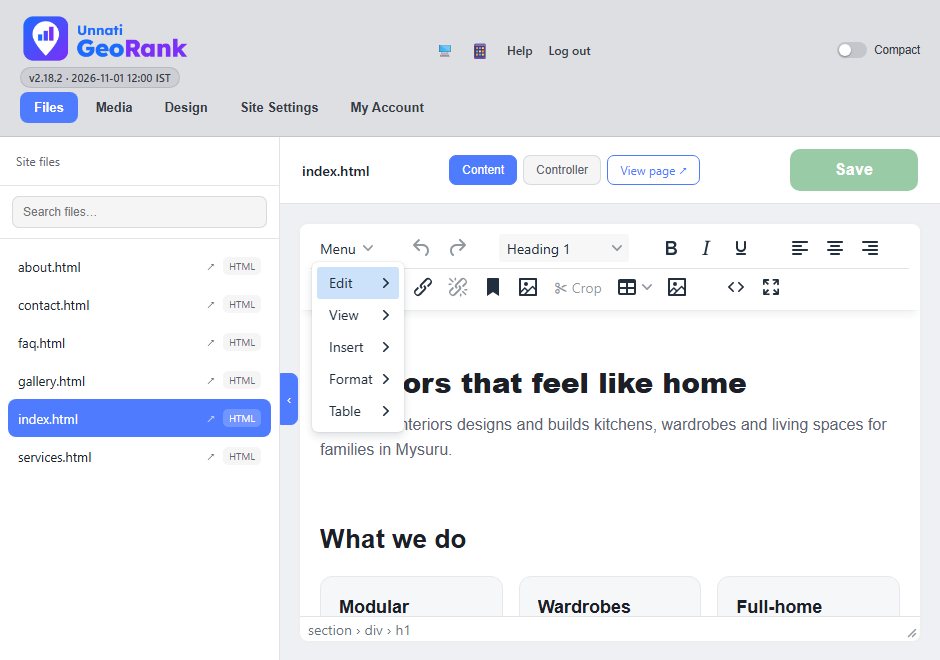
- The Menu button opens Edit, View, Insert, Format and Table, the same menus you know from a word processor: for example copy and paste, find and replace, full screen, tables and text formatting.
Press Ctrl + Z to undo your last change, and Ctrl + K to add a link to the words you selected.
Pictures beside text
When you insert a photo from your library, a Placement bar lets you keep it on its own line, or wrap the text around it on the left or the right. For a wrapped photo you can choose Icon (100 px), Small (150 px) or Medium (200 px). On a phone a wrapped picture never takes more than about half the width, so the text stays easy to read. Click at the start of the paragraph first, so the picture goes where you want it.
Two people on one page
If someone else already has the same page open, GeoRank shows who is editing it and a Request Access button. You can ask for access, or come back later. If someone asks for a page you are editing, GeoRank saves your changes first and then hands the page over.
As a second safety net, GeoRank notices when a page was changed after you opened it, for example if you have it open in another browser tab. Instead of saving over the newer copy, it shows a box called This page has changed with three choices: Keep editing, Open the newer version (your unsaved changes are dropped) or Save mine anyway (your version replaces the newer one). If you are not sure, choose Keep editing, copy what you typed, and then decide.
Changing a section
Many pages are built from sections, such as a coloured panel, a photo gallery, a slideshow or a row of cards. You can change the settings of any section that already exists on the page.
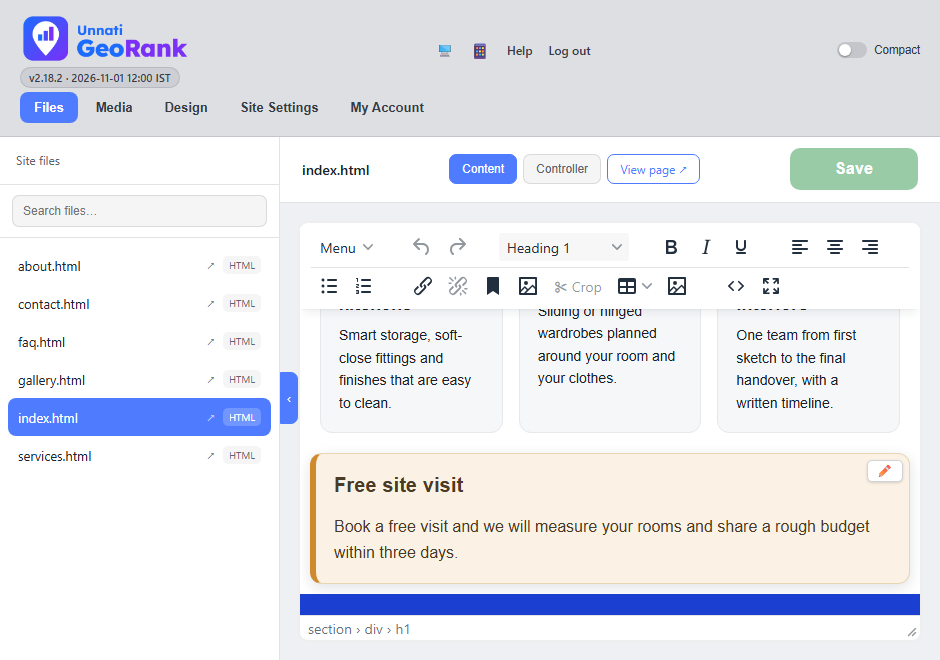
- Point at a section and a pencil button appears in its top right corner. Click it.
- Point at the section. A pencil button appears in its top right corner.
- Click the pencil. A box opens with that section's settings.
- Change what you need, then click Save Changes.
- Click Save at the top of the page to publish it.
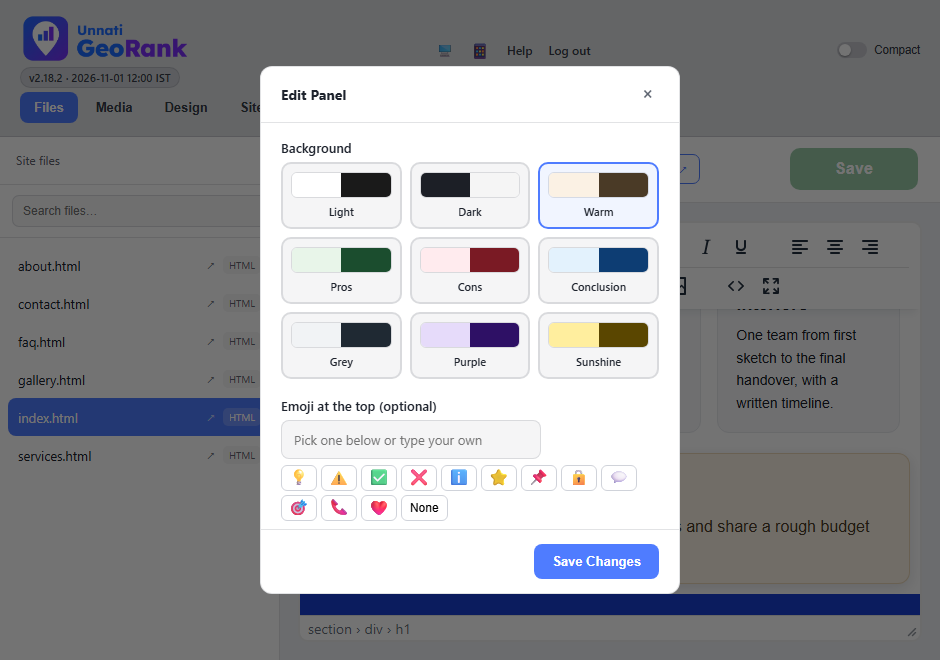
- Choose a background colour style. The box scrolls: below the emoji you will find border size, corner style, padding, width, alignment, shadow and an accent border.
- An optional emoji at the top of the panel.
- Save Changes applies it to the page you are editing.
- The x closes the box without changing anything.
Cards, photos and columns
A section made of several cards or photos lets you add one, remove one and drag them into a new order, right inside its pencil box.
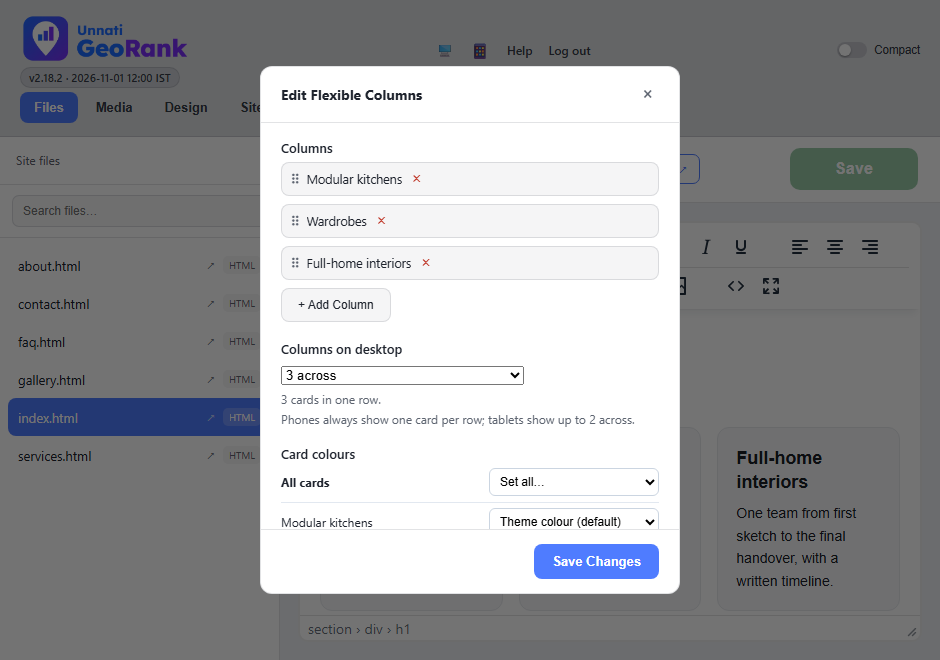
- Your cards. Drag the dotted handle to reorder one, or click the red x to remove it.
- + Add Column adds another card.
- Columns on desktop: Auto picks the neatest layout for the number of cards, or choose 1 to 4 across. Phones always show one card per row.
- Card colours: set all cards at once, or give each card its own colour.
- Save Changes.
What you can change depends on the kind of section:
| Section | The pencil lets you change |
|---|---|
| Panel (single column) | Colour style, an emoji, border, corners, padding, width, text alignment, shadow and an accent border. |
| Columns and Capsules | Add, remove and reorder cards, how many sit across on a desktop, and the colour of each card: Theme colour, Light warm, Light grey, Pros (green), Cons (red) or Conclusion (blue). |
| Pricing and Testimonials | The colour of each card. A pricing plan can also have a coloured pill behind its name: Dark, Dark green, Blue, Green, Gold or Maroon. |
| Photo gallery | Add, remove and reorder photos, how many sit across on a desktop, and the photo shape: Square, Portrait, Landscape or Original shape (no cropping). |
| Rows gallery (Justified) | The photos, and the height of each row. Photos pack into neat rows by their own shape. |
| Slideshow | The photos, the frame shape (Auto matches your photos), the window size on a desktop, and what sits behind a photo that does not fill the frame. |
| Card carousel | Each card's photo, heading and link, the photo shape, the card style and a colour style: Theme colour, Midnight, Ocean, Forest, Sunset or Violet. |
| Intro / Product Info | The photos. One photo shows as before. Two or more become a gallery with a large photo and a strip of small ones underneath. |
| Hero, buttons and marquee | Labels and where each button links to, the colours, and the items of a scrolling marquee. |
Adding a whole new section, copying one, deleting one or moving one to a different place on the page is done by us, so a page cannot be broken by accident. Tell us what you want and we will do it.
Page settings
With a page open, click Controller at the top of the editor. These settings belong to that page only.
Navigation
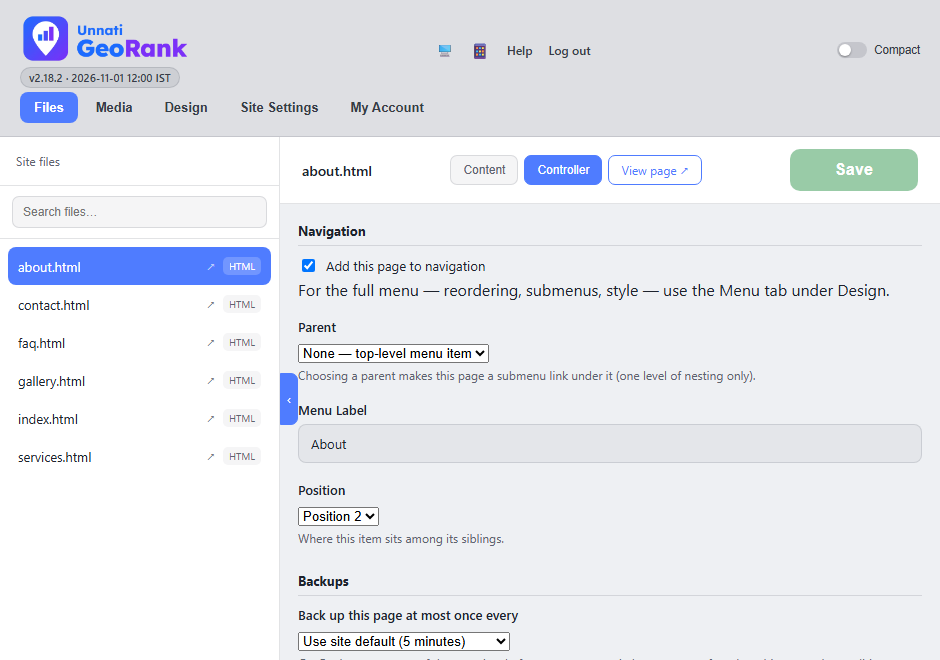
- Add this page to navigation: tick the box to show this page in the menu, and untick it to hide the page from the menu.
- Parent: place this page in a dropdown under another menu item.
- Menu Label: the words shown in the menu.
- Position: where this item sits among the others.
A page you hide still exists, and people with its address can still open it. For the whole menu at once, with reordering, submenus and its colour style, use the Menu tab under Design (see The menu).
Backups and scroll animation
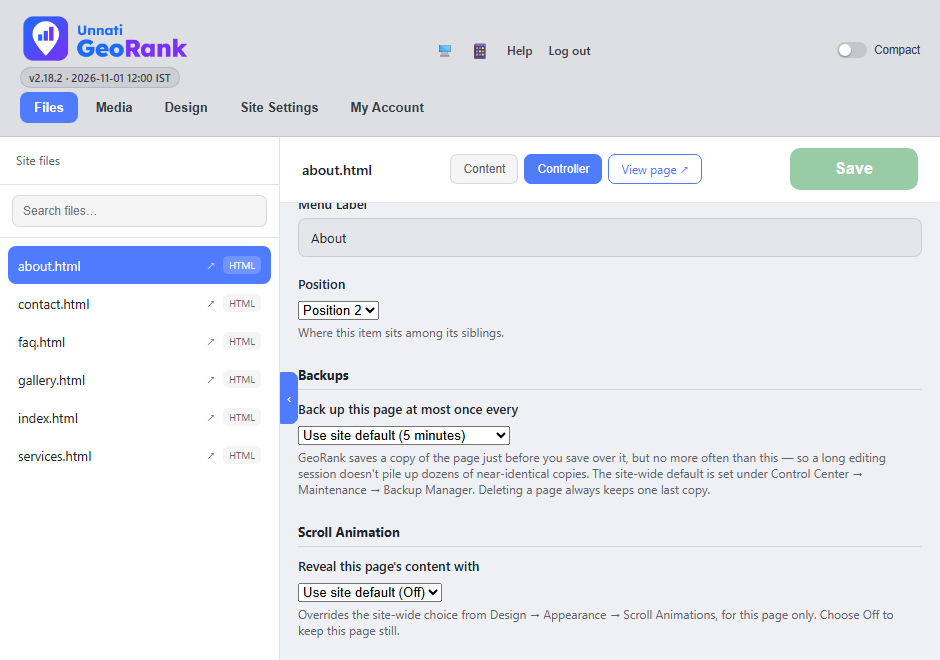
- Backups: how often GeoRank keeps a copy of this page when you save. Leave it on Use site default unless we have told you otherwise.
- Scroll Animation: how this page's content appears as visitors scroll.
- Click Save to apply every setting on this tab.
The site's normal backup setting is fine for almost everyone. Scroll Animation lets this page use a different animation from the rest of the site, or none. The site-wide choice is made under Design.
Photos
Open the Media tab to see every photo and file on your site.
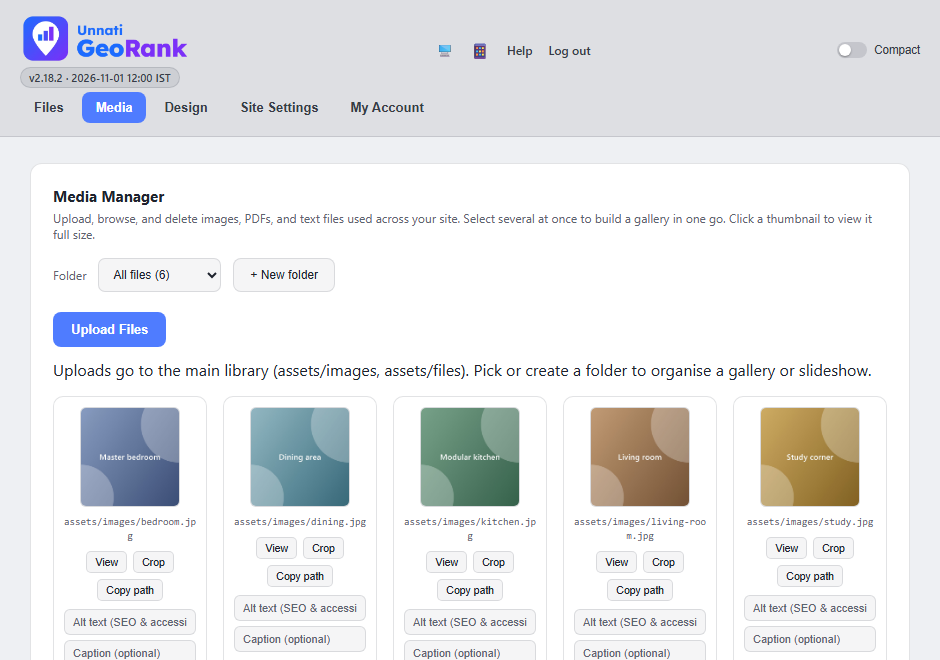
- The Folder menu filters the photos. Folders keep photos organised, for example one folder for a gallery and another for a slideshow.
- + New folder makes a new one.
- Upload Files adds photos or PDFs from your computer, into the folder you have chosen.
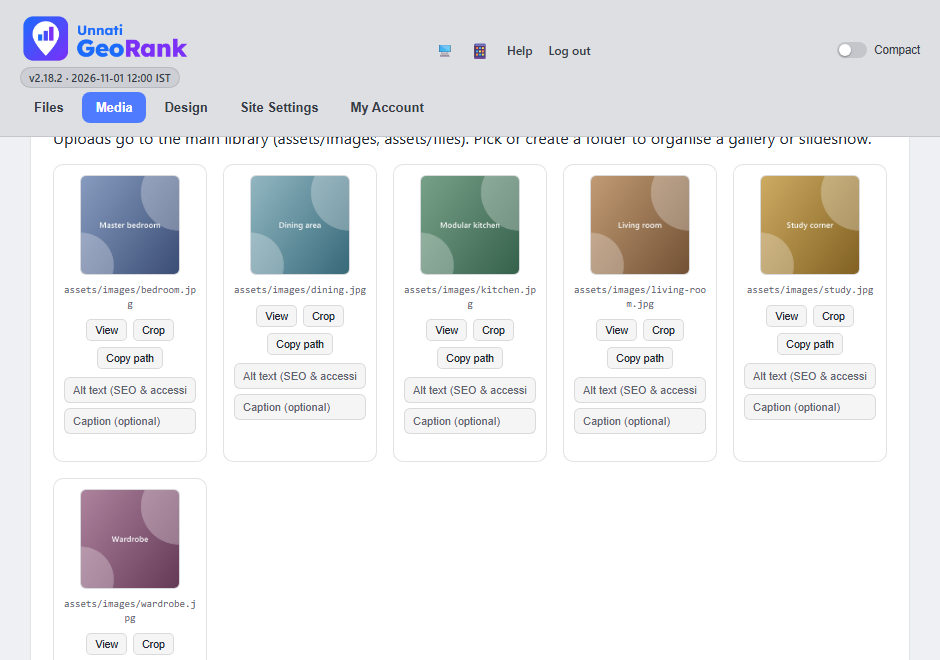
- View shows the photo full size, and Copy path copies its address.
- Crop trims the photo.
- Alt text: describe the photo in a few words.
- Caption: optional text shown with the photo.
- Click Upload Files and choose photos from your computer. You can pick several at once. If you upload the very same photo again to the same folder, GeoRank reuses the copy already there instead of storing a second one, and tells you so.
- Type a short alt text under each photo, for example Grey floor tile in a living room. Click outside the box and GeoRank saves it and shows a small Saved note.
- To use a photo on a page, click the picture icon in the editor toolbar and choose it from the library. The library has the same folder menu, a + Folder button and a Select all shown button, so a whole folder can fill a gallery in one click.
Alt text helps visitors who cannot see the photo, and it helps your pages show up in Google Images.
Cropping a photo
Click Crop under a photo in Media, or click a photo in the page editor and press Crop on the toolbar. Drag the edges or corners of the box, and pick a shape: Free, Original, 1:1, 4:3, 3:2, 16:9 or 4:5. Trim white edges cuts off blank white or see-through space for you. The cropped photo is saved as a new copy with its alt text, so the original stays in your library and other pages that use it do not change. Photos inside a gallery, slideshow or carousel are changed from that section's pencil box instead.
Which photos work best
| Use | Shape | Size to aim for |
|---|---|---|
| Product or portrait photos | Tall, 4 wide by 5 high | 1000 × 1250 pixels |
| Square photos | Square | 1200 × 1200 pixels |
| Wide banners | 16 wide by 9 high | 1600 × 900 pixels |
Keep each file under 3 MB, and use the same shape for every photo in one gallery so they line up. GeoRank turns new photos into the lighter WebP format by itself, so your pages load quickly, and keeps screenshots and logos sharp. If your tall photos look soft on the site, tell us. We can raise the size limit that GeoRank uses when it shrinks photos.
Colours, banner and animation
Open Design, then the Appearance tab. Three groups of settings live here, and one button at the bottom saves them all.
Colours and fonts
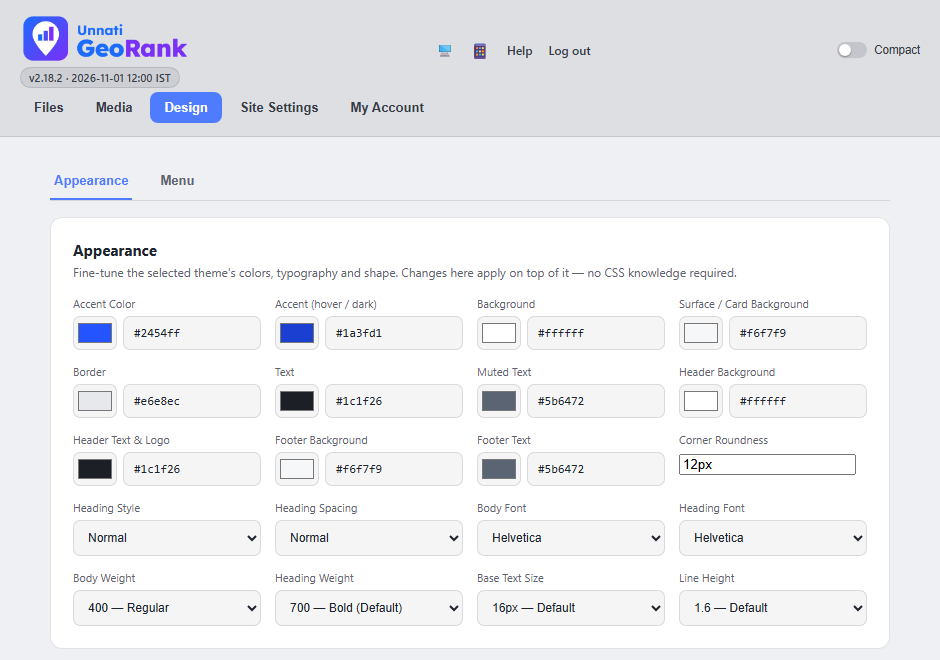
- Click a colour box to pick a colour. The colours cover links and buttons, backgrounds, cards, borders, text, the header and the footer.
- Or type a colour code such as #2454ff.
- Corner Roundness sets how round buttons and cards are, for example 12px.
- Fonts: the heading and body fonts, weights and spacing.
- Base Text Size and line height make the text bigger or tighter.
Change one thing at a time and check it on your site, so you can see what each setting does. The settings you leave alone stay as they are.
Announcement banner
A slim bar at the very top of every page, useful for an offer, a holiday notice or a phone number. It stays visible while visitors scroll.
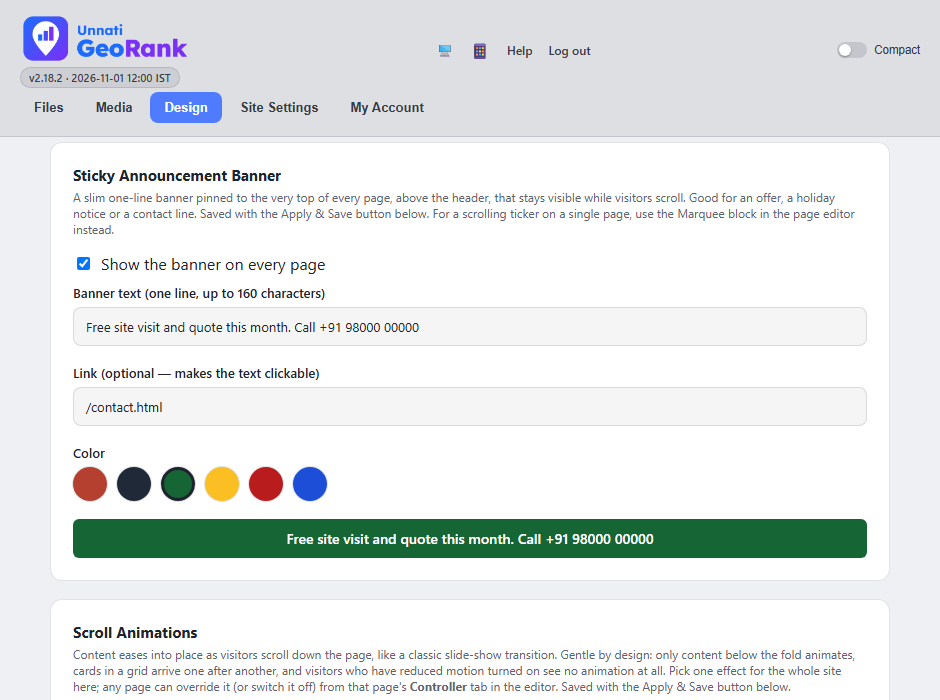
- Tick this to show the banner on every page.
- The banner text, one line, up to 160 characters.
- An optional link. It makes the whole banner clickable.
- Pick one of six colours. The bar below shows a preview.
On a phone, a banner that is too long to fit scrolls slowly from right to left so visitors can read all of it. Keep it to one short sentence where you can.
Scroll animation
Content can ease into place as visitors scroll down. The effects are gentle on purpose. Visitors who have reduced motion turned on in their phone or computer see no animation at all.
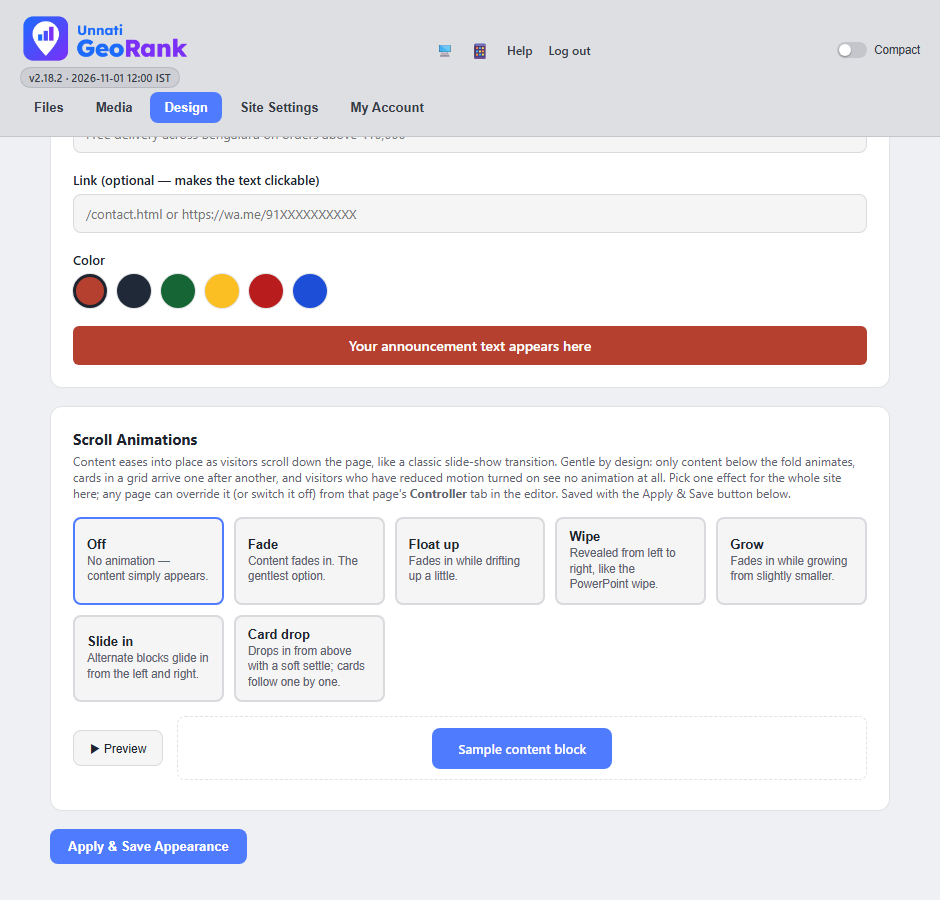
- Pick one effect for the whole site, or Off.
- Preview plays the effect on a sample box.
- Apply & Save Appearance saves colours, banner and animation together.
- Fade: content fades in. The calmest choice.
- Float up: fades in while drifting up a little.
- Wipe: revealed from left to right.
- Grow: fades in while growing from slightly smaller.
- Slide in: sections glide in from the left and right in turn.
- Card drop: cards drop in one after another.
When you are happy, click Apply & Save Appearance. Then open your site and scroll to see the result. A single page can use its own effect, or none, from its Controller tab.
The menu
Open Design, then the Menu tab. Your site has a header menu at the top of each page and a footer menu at the bottom. They are edited separately.
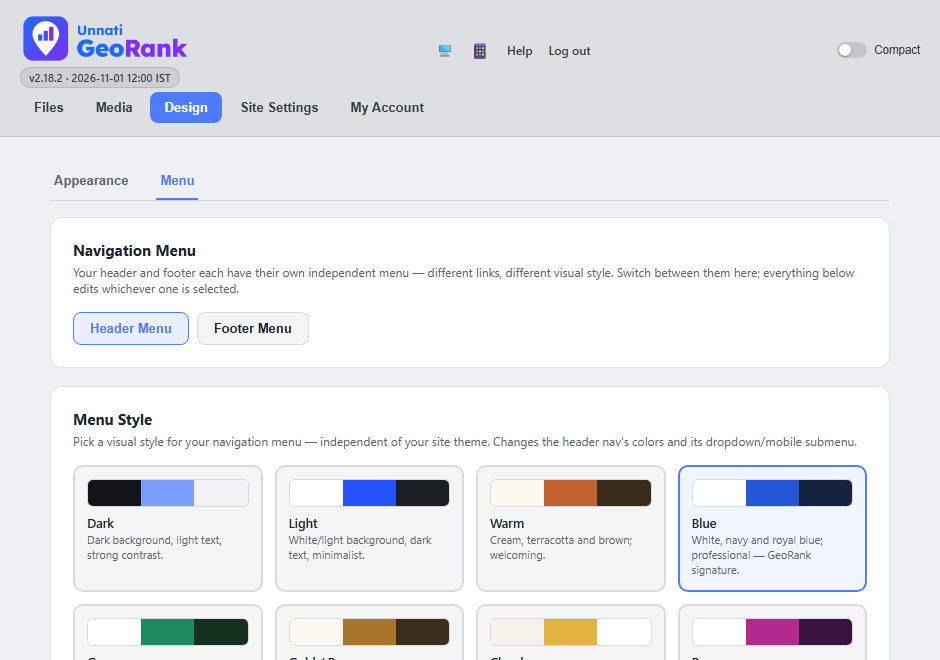
- Switch between the Header Menu (top of every page) and the Footer Menu.
- Pick a menu style. The highlighted one is in use.
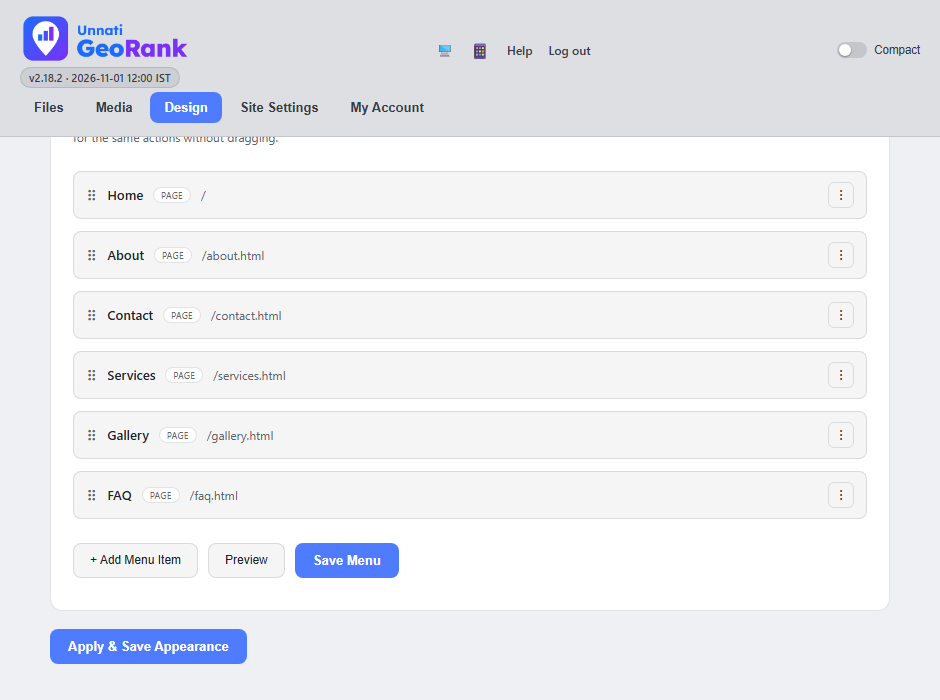
- Drag the handle to reorder an item.
- The three dots open actions for that item: edit, add a child link, move, duplicate, hide or delete.
- + Add Menu Item adds a link to one of your pages, to any web address, or a heading that is not clickable.
- Save Menu publishes your changes. Preview first shows how the menu will look, without publishing it.
- Choose Header Menu or Footer Menu.
- Drag an item by its handle to move it. Drop it slightly to the right under another item to make it a submenu link. Items shifted to the right are submenu links under the item above.
- Use the three dots on an item to Edit its label, Add Child (a submenu link under it), Move Up or Move Down, Duplicate it, Hide it or Delete it from the menu.
- Scroll to the bottom and click Save Menu. Nothing changes on your site until you do.
On a phone the menu folds a submenu away behind a small arrow, so visitors tap the arrow to open it.
Delete only takes the link out of the menu. The page itself is not deleted. If you only want a link gone for a while, use Hide, which you can undo with Show.
Contact details and WhatsApp
Open Site Settings. It opens on Business Info, with the sticky WhatsApp button just below it. These are the only parts of Site Settings you use.
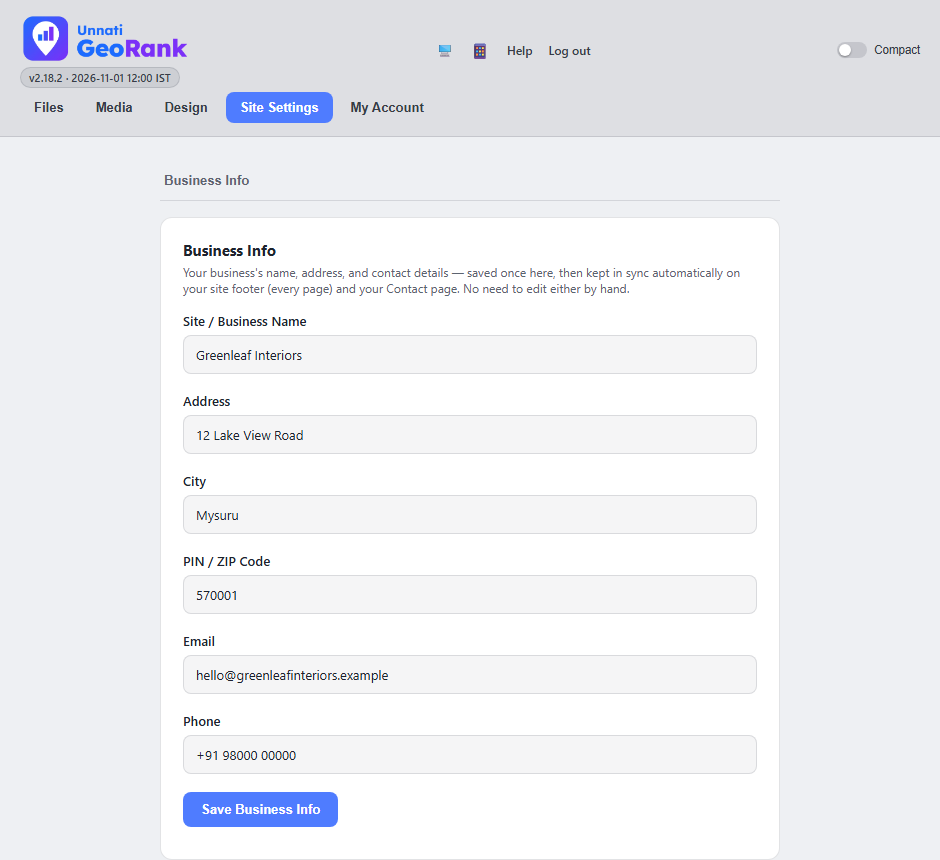
- Fill in your name, address, city, PIN code, email and phone.
- Click Save Business Info.
Type your business name, address, city, PIN code, email and phone, then click Save Business Info. GeoRank updates the footer on every page and your Contact page for you, so you only type it once.
The WhatsApp button
A round WhatsApp button can sit at the bottom right of every page. Tapping it opens a chat with your number.
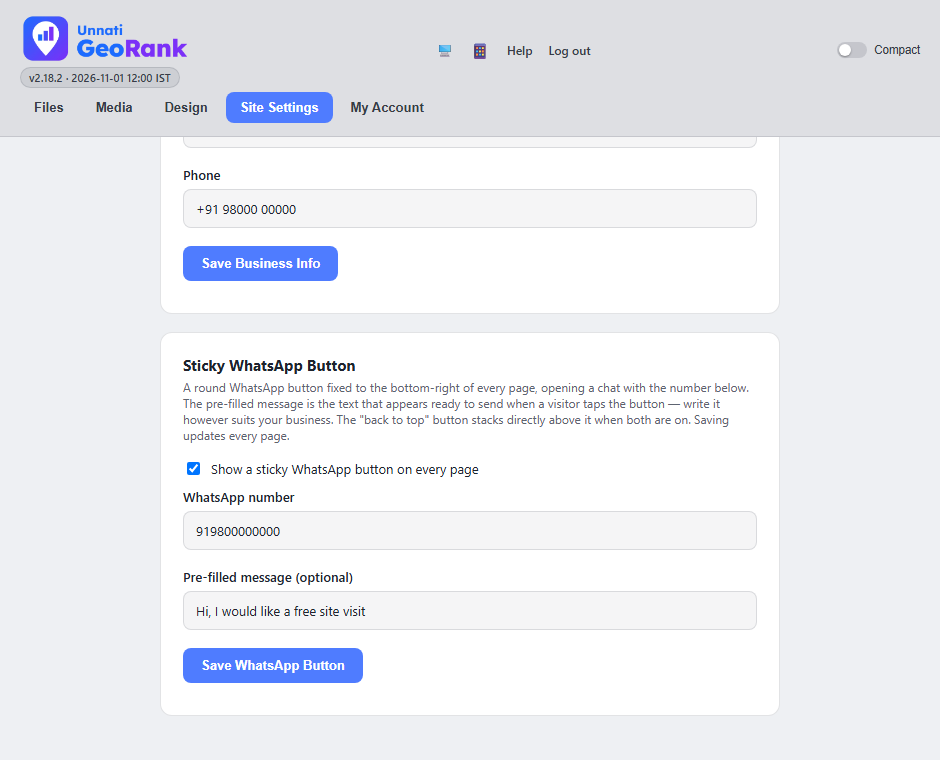
- Tick this to show the button on every page.
- Your WhatsApp number: country code and number with digits only, for example 919800000000.
- An optional pre-filled message. It is ready to send when a visitor taps the button.
- Click Save WhatsApp Button. It updates every page.
Your account
Open My Account to change your own password and the look of the dashboard.
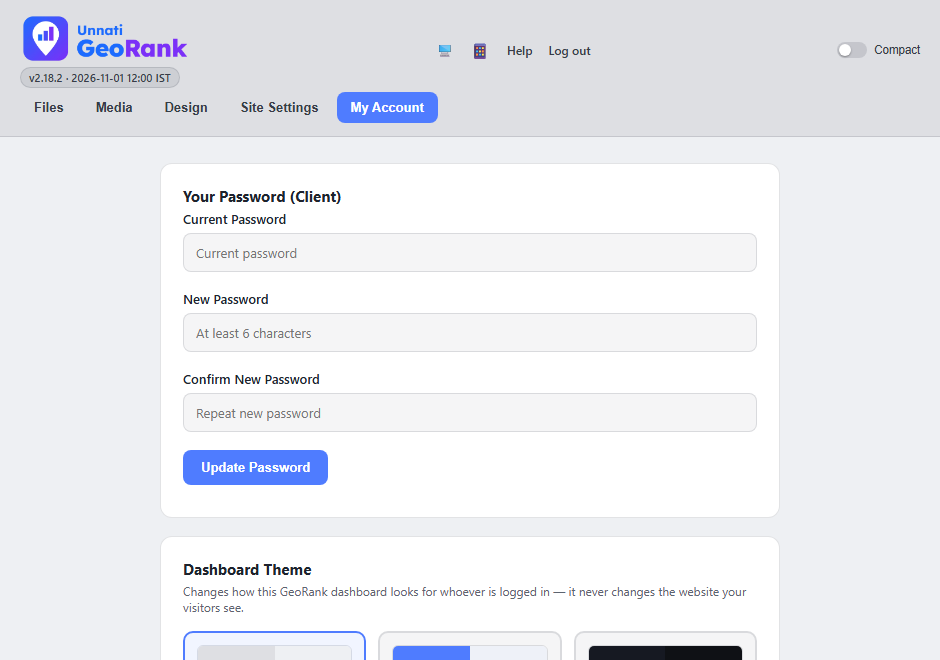
- Type your current password, then the new one twice.
- Click Update Password.
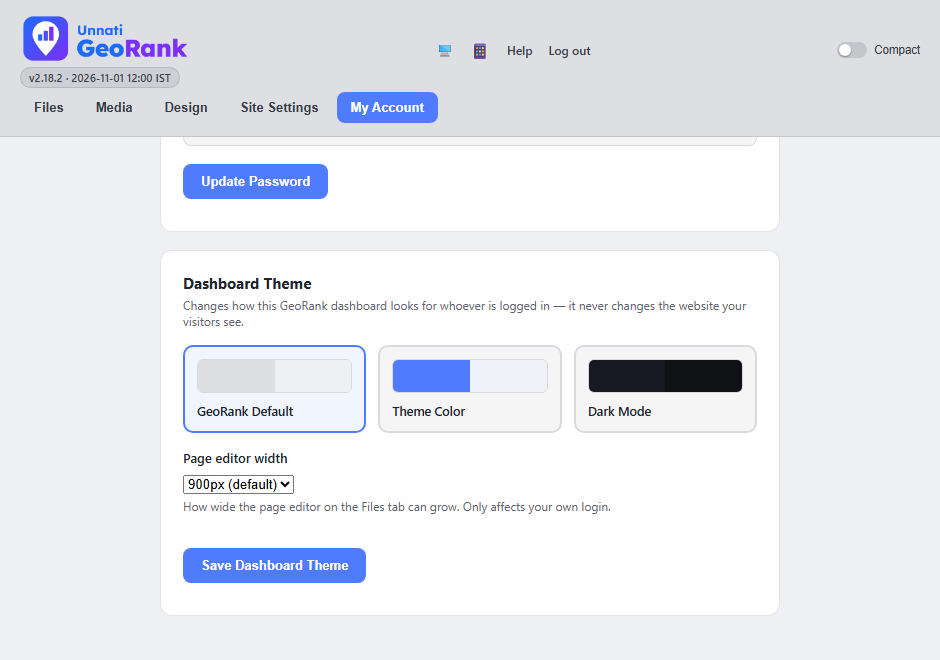
- Choose how the dashboard looks for you: GeoRank Default, Theme Color or Dark Mode.
- Page editor width: how wide the page editor can grow on your screen.
- Save Dashboard Theme. It changes only your own view, never your website.
- Use a password of at least 6 characters that you do not use anywhere else. It must also be different from the passwords other people use for this site.
- The dashboard theme only changes how the GeoRank dashboard looks for you. It never changes your website.
A page to practise on
The best way to learn is to try things, and the safest place to try them is a page that is not part of your real website. If we have set one up for you, it is called z-sample.html. Look for it at the end of the page list under Files.
- It is a practice page, not a real one. It is kept out of your menu and hidden from Google, so visitors are not sent to it and nothing you do there changes your real pages.
- It teaches by doing. The page is a short course in numbered lessons. Each lesson has a yellow Try this box that tells you what to click, and a working section underneath for you to try it on: panels, columns, photo galleries, a slideshow, a card carousel and more.
- Change anything. Retype the text, swap photos, point at a section and click the pencil, then click Save. Open View page to see the result.
- Keep it private. Please do not link to the practice page from your real pages or share its address with customers.
If you do not see z-sample.html in your list, ask us to add it. If you ever spoil it, we can put it back the way it was.
What is not here
Some things are left out of your login on purpose, because a wrong click there can affect the whole site. Ask us and we will do them for you.
- Adding, copying, deleting or moving a whole section on a page.
- Creating, renaming or deleting pages.
- Page titles and descriptions for Google, other search settings and custom code.
- Site-wide tools such as speed settings, redirects, backups and software updates.
- Advertising landing pages.
- Creating or changing other people's logins.
If something goes wrong
I saved, but my website still shows the old version
Your browser may be showing a saved copy. Press Ctrl + F5 on the page to reload it fully. On a phone, close the tab and open the page again. If it still looks old after a few minutes, tell us.
The Save button is pale and will not click
GeoRank locks Save while there is nothing new to save. Change something on the page and it turns bright and starts to pulse.
It says "This page has changed"
The page was changed after you opened it, perhaps from another browser tab. Choose Keep editing if you are unsure, copy what you typed, and ask us if you need help deciding. Open the newer version drops your unsaved changes, and Save mine anyway replaces the newer copy with yours.
A photo on my page shows as broken
When you save a page, GeoRank repairs a picture link that points to a file that no longer exists if a converted copy of the same picture is there, and the Saved message tells you how many it fixed. If a photo still shows as broken after you save and reload, tell us which page it is on.
Mobile Preview does nothing
Mobile Preview opens in a small pop-up window. Your browser may have blocked it. Allow pop-ups for your GeoRank address, then click Mobile Preview again.
It says someone else is editing the page
Another person has the same page open. Click Request Access, or wait until they finish.
I was asked for my password in the middle of editing
Your login timed out. A small box called Your session has closed opens on top of the page. Type your password in it and click Log In. Your page stays as it was and your last action is repeated for you. Click Save often while you work so a timeout never costs you much.
I made a mistake and want the old version back
GeoRank keeps backup copies of your pages. Tell us the page and roughly when it was right, and we will restore it.
Need a hand
Contact Unnati Digi Services for a new password, to add or remove a section, or any help with this guide.